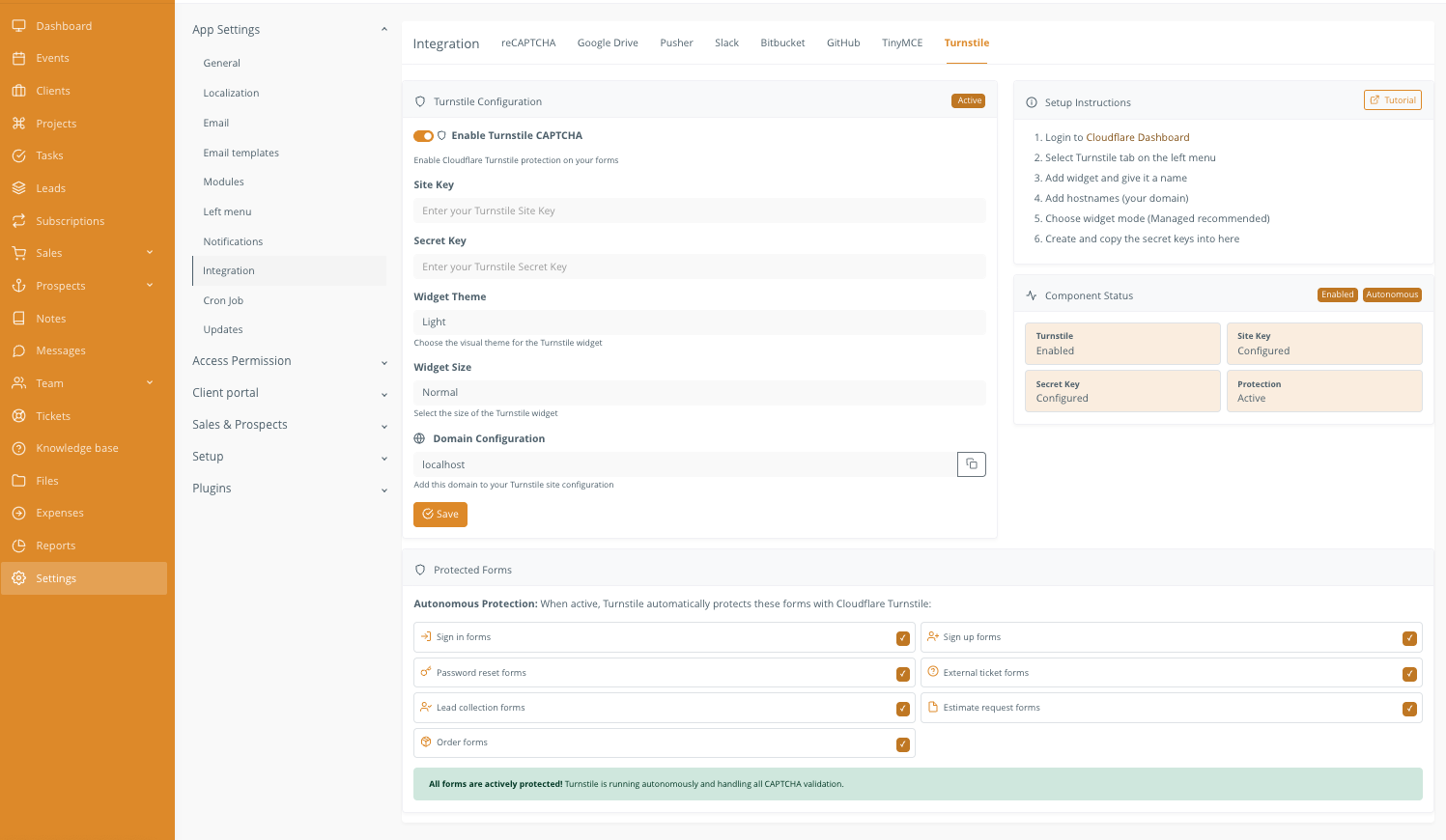
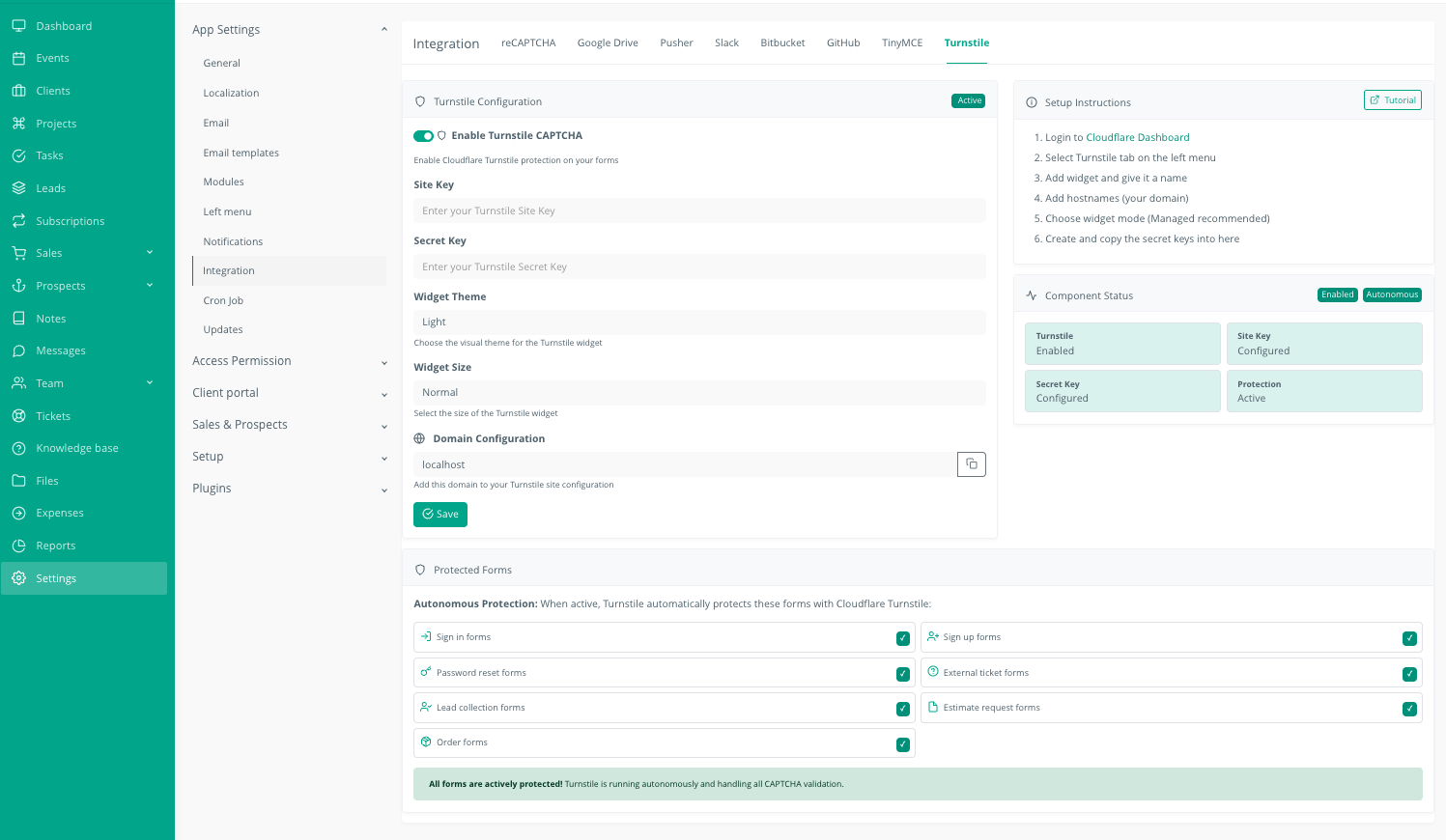
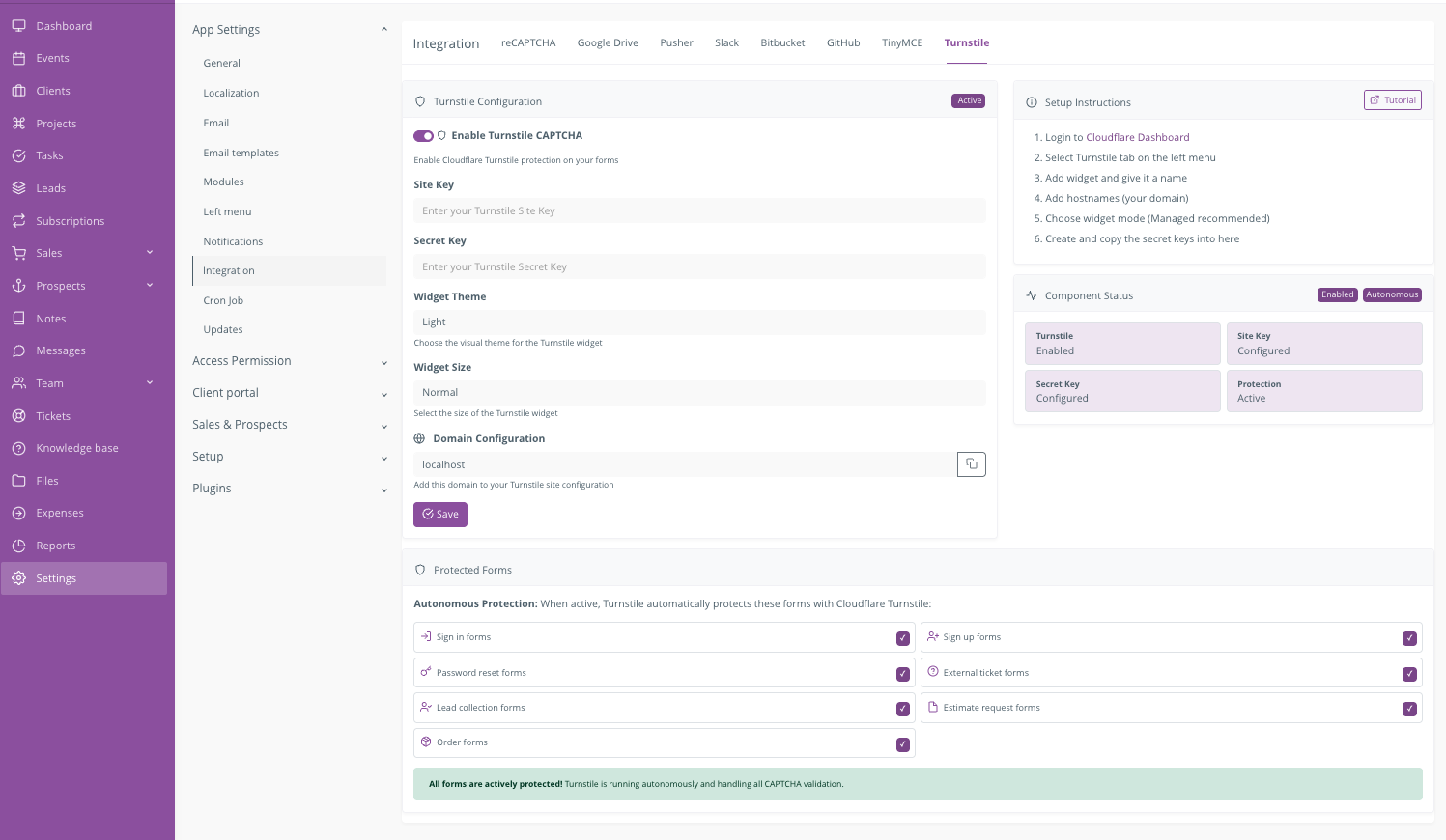
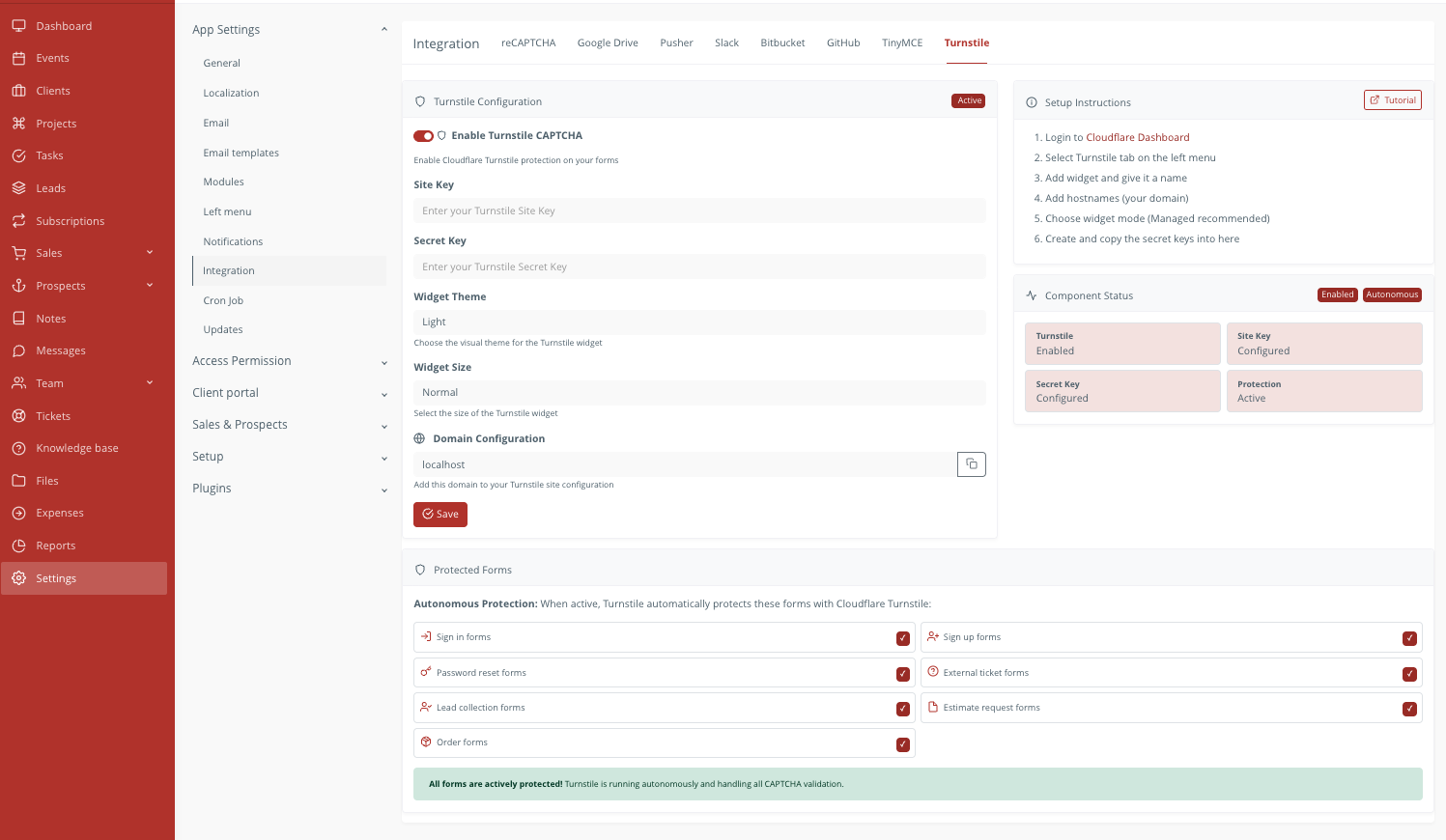
Cloudflare Turnstile CAPTCHA Plugin for RISE CRM

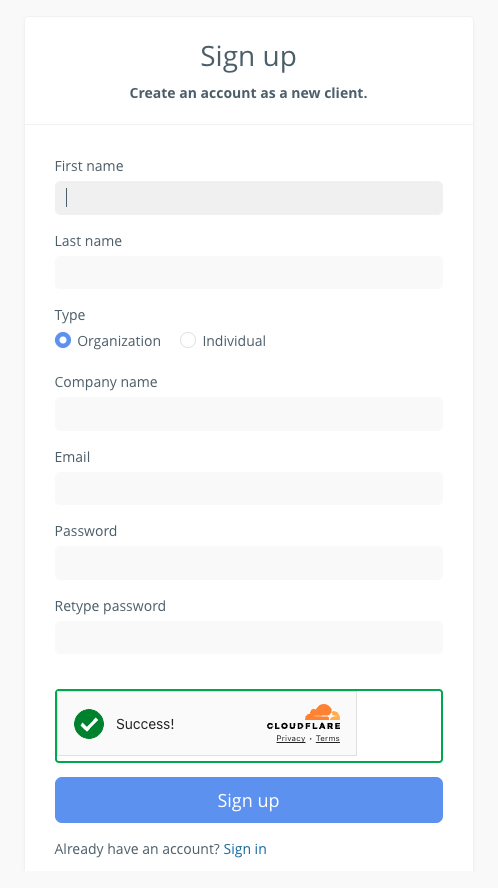
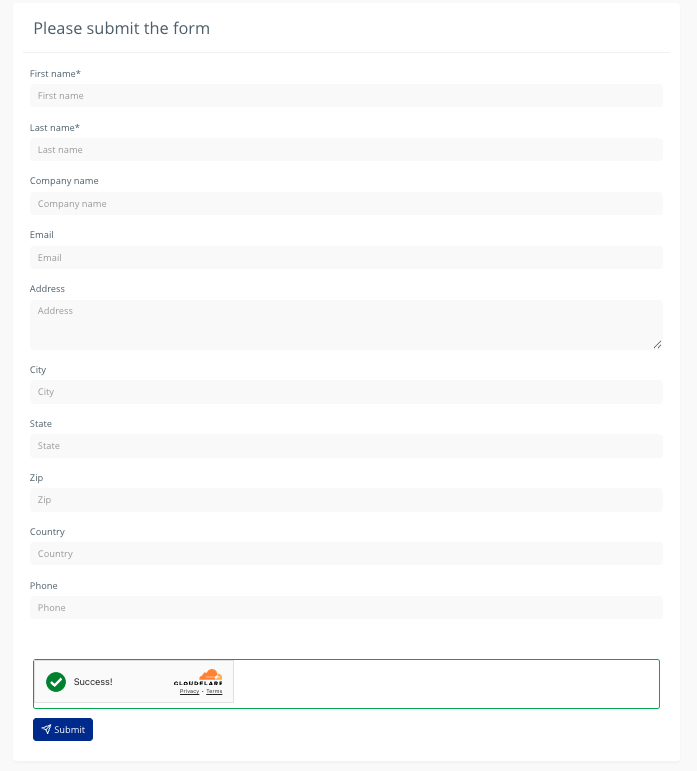
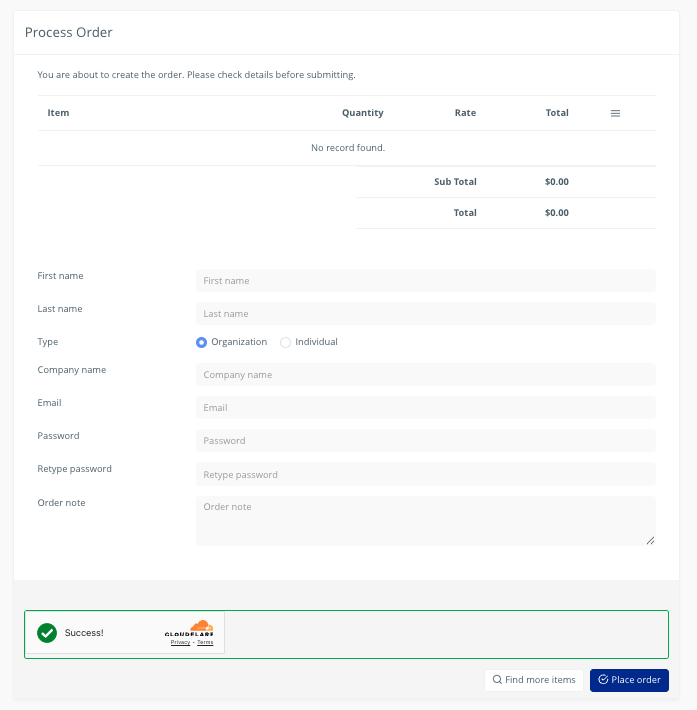
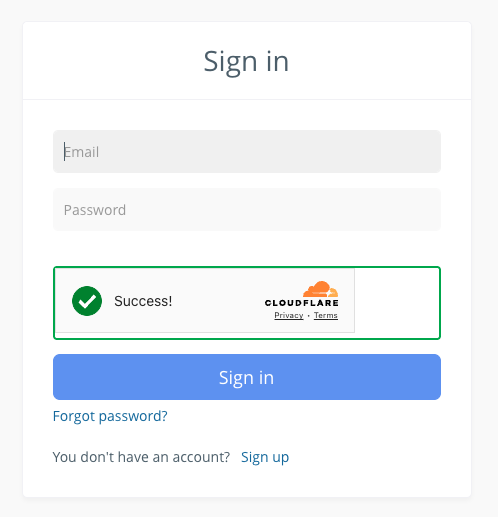
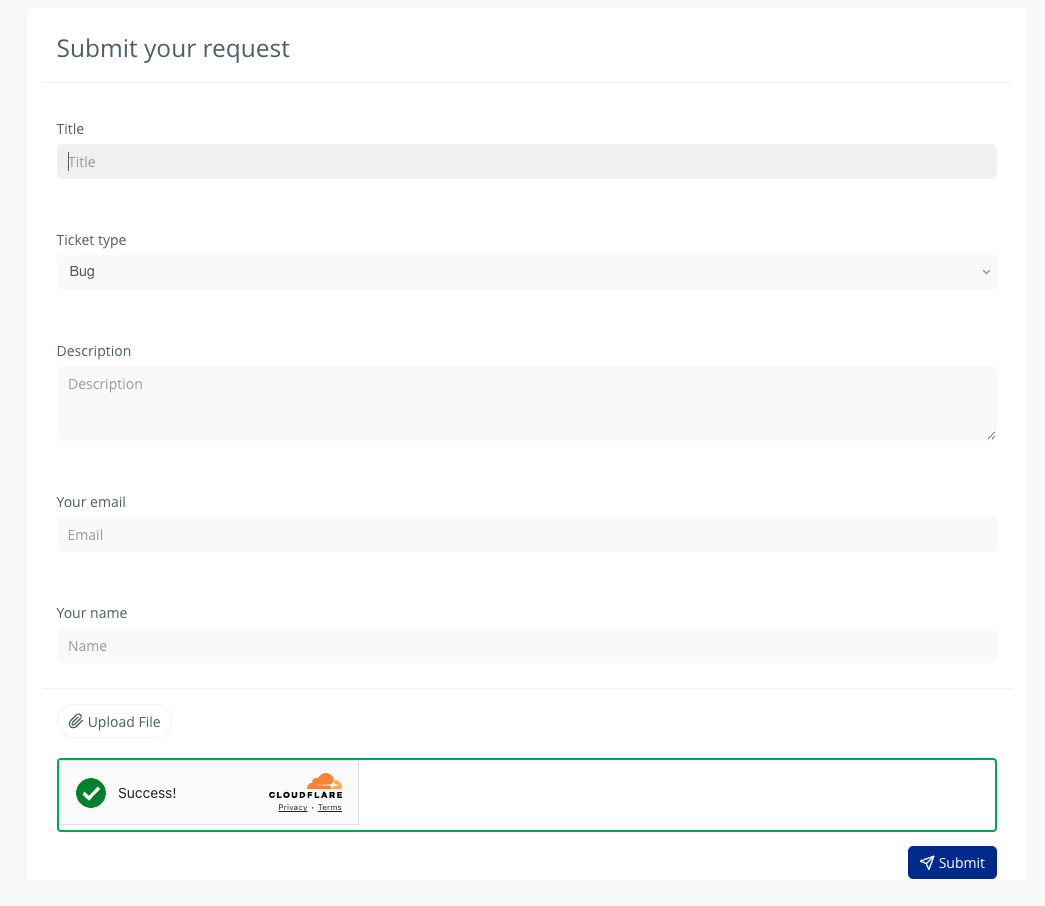
Stop bots without punishing real users. Invisible, privacy‑first CAPTCHA that replaces reCAPTCHA—no code edits, no puzzles, no friction.

🛡️
Invisible Bot Protection
for RISE CRM

Why Teams Switch from reCAPTCHA to Turnstile

More Sign‑ins, Fewer Abandons

Users don't solve puzzles; Turnstile works silently in the background, keeping conversion rates high.

🔒 Privacy‑First Trust

Built to minimize tracking and fingerprinting; aligns with modern compliance expectations like GDPR.

Zero Core Edits

Plug‑and‑play with RISE CRM; install, paste keys, enable. No developer intervention required.

🌐 Cloudflare‑Level Protection

Global network intelligence blocks automated abuse without slowing down legitimate human users.

Try the Free Demo

  • One-click login as Admin on demo site
  • No username and password required
  • Demo site resets every 24 hours
Launch Demo →

Outcomes, Not Just Features

🚀

Smoother Logins

Less user frustration, higher form completion rates across login and submissions.

🤖

Reduced Bot Traffic

Fewer fake accounts, cleaner data, and lower support load from spam.

⏱️

Fast Setup

Minutes to install; no developer intervention required—just paste keys and go.

🔄

Future‑Friendly

Built to track with RISE CRM updates and Cloudflare improvements automatically.

Key Features at a Glance

Invisible verification (no user interaction required)
Drop‑in replacement for Google reCAPTCHA
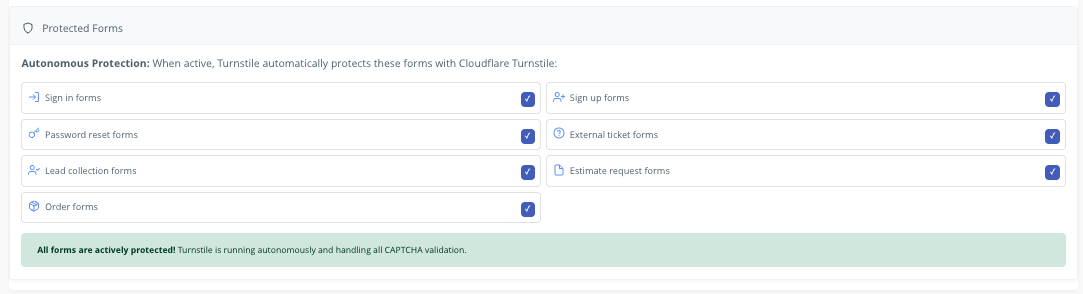
Works out of the box on RISE login & supported forms
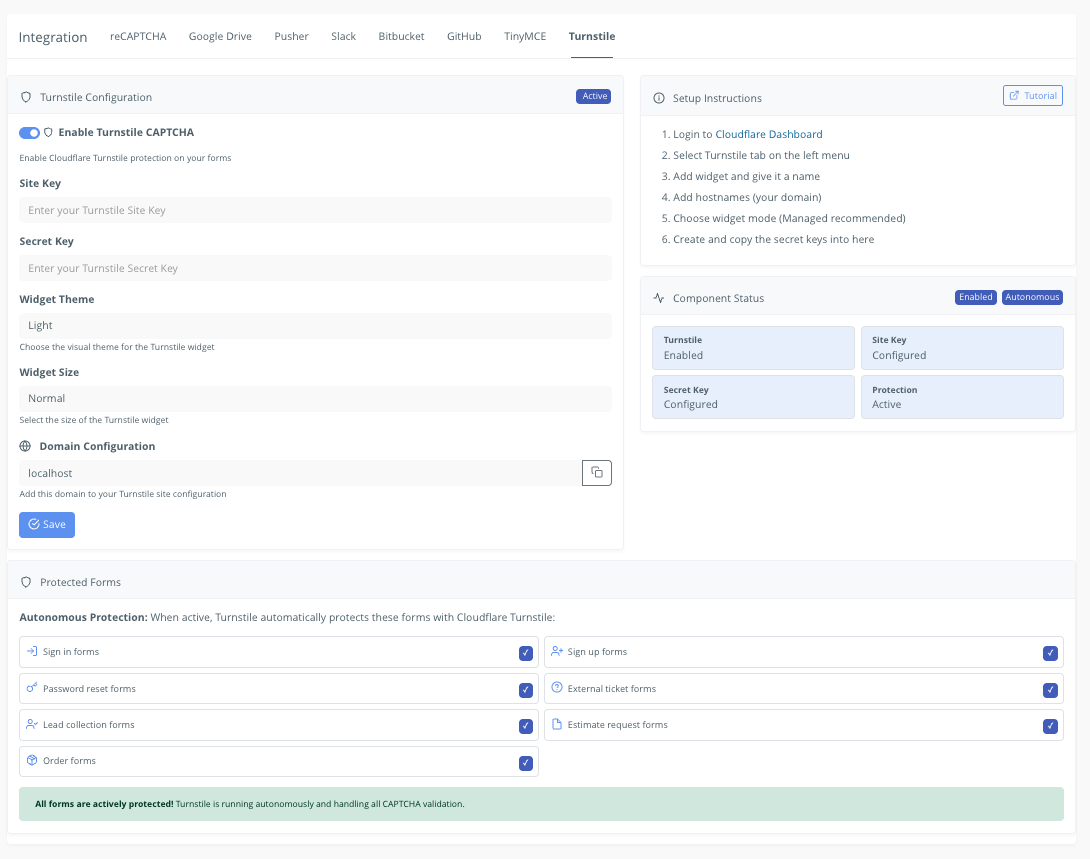
Simple key‑based config (Site Key + Secret Key)
Theme/size options; CSP‑friendly; cross‑browser
Secure credential handling
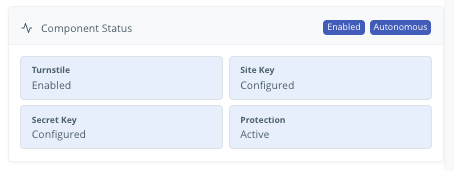
"Test connection" check + status dashboard
Lifetime updates & 6 months support included

How It Works (3 Steps)

1

Install the Plugin

Upload to RISE CRM—no core file edits needed. Standard plugin installation.

2

Add Your Keys

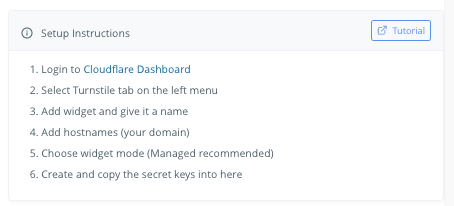
Paste your Cloudflare Turnstile Site Key and Secret Key from your Cloudflare dashboard.

3

Enable & Save

Toggle on, save settings, and your CAPTCHA protection is live immediately.

Turnstile vs reCAPTCHA

Feature Turnstile reCAPTCHA
User Friction Invisible ✨ Frequent puzzles
Privacy Posture Privacy‑first 🔒 More tracking concerns
Setup Complexity Drop‑in, zero core edits Easy, but edits may be needed
Result Higher completion rates User drop‑offs possible

See the difference yourself:

Try Live Demo →

Frequently Asked Questions

Does this change my RISE CRM core files?

No. It's a plugin; zero core edits required. Your RISE CRM installation remains untouched.

Will it break my forms?

It's designed to detect and replace reCAPTCHA automatically where supported. If you ever see an issue, run Test Connection in settings or check the docs—then contact support with your purchase code.

Is Cloudflare Turnstile free?

Cloudflare offers a free tier that's sufficient for most use cases. You only need a Cloudflare account and your site's domain.

How long does setup take?

Typically under 10 minutes: install, paste keys, enable. That's it.

What about updates and support?

You get lifetime updates (compatibility and bug fixes) and 6 months of support per Envato policy, with extended support available.

Setup Guides

Follow these steps to install the Turnstile plugin in your Rise CRM application.

Prerequisites

  • Administrative access to your Rise CRM application
  • Downloaded Turnstile plugin file (after purchase)
  • Valid purchase code
  • Active Cloudflare account (free or paid)

Important: Make sure you have backed up your application before installing any plugins.

Installation Steps

1

Log into Your Application

Access your Rise CRM application using your administrator credentials.

2

Navigate to Settings

On the left menu, locate and click on Settings.

3

Access All Plugins

In the Settings section, find and click on All Plugins.

4

Open Install Plugins

Click on Install Plugins to access the plugin installation interface.

5

Upload Plugin File

Upload the downloaded Turnstile plugin file you received after purchase.

6

Enter Purchase Code

Enter your valid purchase code in the designated field.

7

Install the Plugin

Click the Install button to begin the installation process.

8

Activate the Plugin

After successful installation, click Activate to enable the Turnstile plugin.

9

Verify Installation

Confirm that the Turnstile plugin appears in your active plugins list with a green "Active" status.

Next Steps

Need Help? If you encounter any issues during installation, contact support by submitting a ticket with your purchase code.

Complete step-by-step guide to configure Cloudflare Turnstile and integrate it with your Rise CRM application.

Prerequisites

  • Turnstile plugin already installed and activated in Rise CRM
  • Your website domain name
  • Internet access to create/access Cloudflare account

Important: You'll need both the Site Key (public) and Secret Key (private) from Cloudflare to complete the integration.

Part 1: Cloudflare Account Setup

1

Create or Access Cloudflare Account

Go to https://dash.cloudflare.com and either sign in to your existing account or create a new free account.

2

Navigate to Turnstile Dashboard

Once logged in, find Turnstile in the left sidebar or use the search function to locate it.

3

Access Turnstile Sites

Click on Turnstile to open the Turnstile management interface.

Part 2: Creating a Turnstile Site

4

Add New Site

Click the Add Site button to create a new Turnstile configuration for your website.

5

Configure Site Details

Fill in the required information: Site name (e.g., "My Rise CRM"), Domain (e.g., "example.com"), Widget mode (select "Managed" for best user experience).

6

Choose Widget Settings

Configure the widget appearance: Widget mode (Managed recommended) or Non-interactive, leave Pre-clearance at default settings.

7

Create the Site

Click Create to generate your Turnstile site configuration.

Part 3: Obtaining Your Keys

8

Copy Site Key

After creation, you'll see your Site Key (public key). Click the copy button to copy it to your clipboard.

0x4AAAAAAABkMYinukE_FoOZ

This is your public key — it's safe to include in your web pages.

9

Copy Secret Key

Find and copy your Secret Key (private key). This is used for server-side verification.

0x4AAAAAAABkMYinukE_FoOZ-ABC123XYZ

⚠️ Keep this private! Never share your secret key publicly.

10

Configure Domain Settings

Verify that your domain is correctly configured in the allowed domains list. Add additional domains if needed.

Part 4: Rise CRM Integration

11

Access Rise CRM Settings

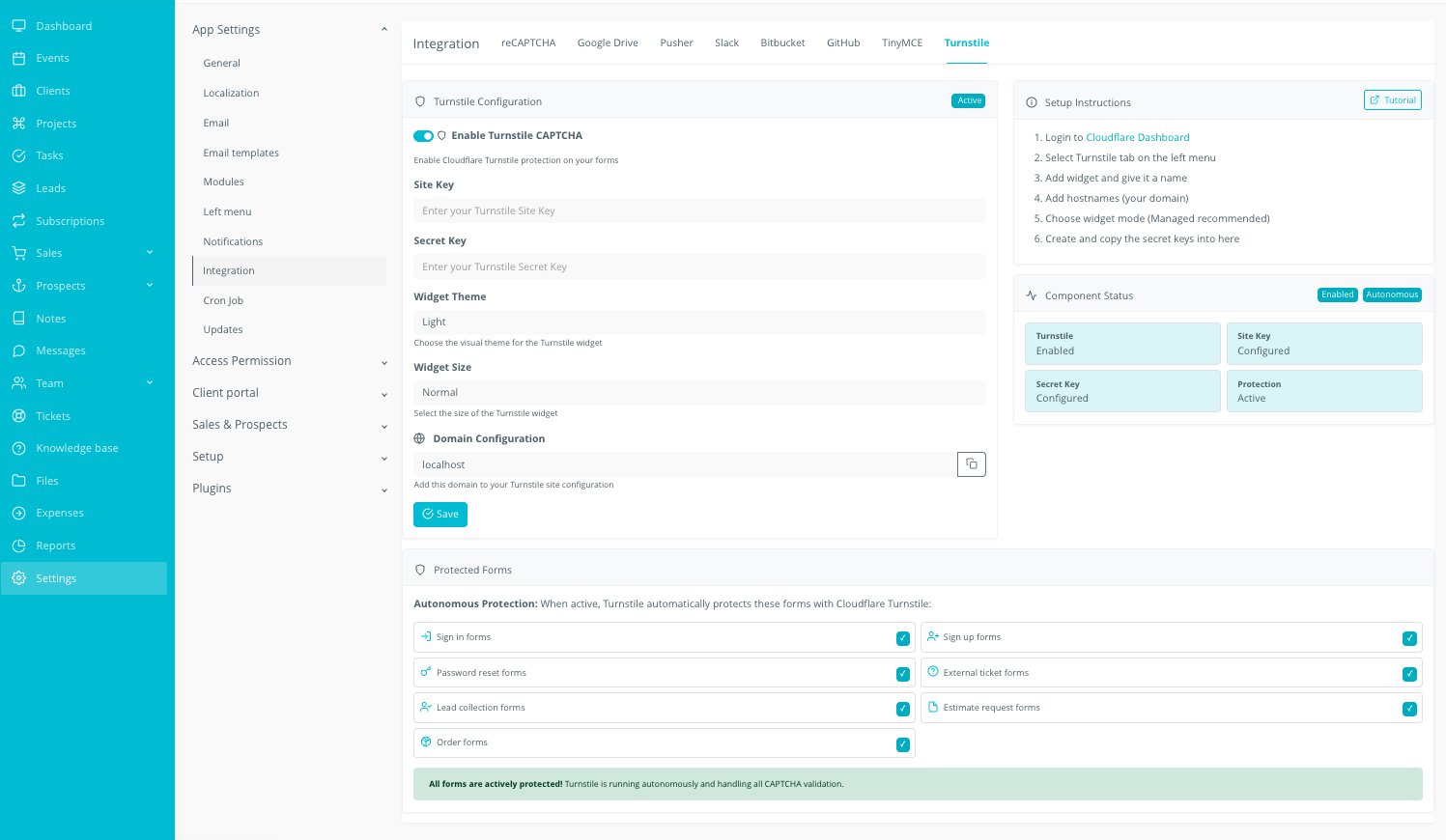
In your Rise CRM application, navigate to Settings from the left sidebar menu.

12

Open Turnstile Settings

Find and click on Turnstile in the settings menu to access the plugin configuration.

13

Enter Site Key

Paste your Cloudflare Site Key into the Site Key field.

14

Enter Secret Key

Paste your Cloudflare Secret Key into the Secret Key field.

15

Configure Theme and Size

Choose your preferred widget appearance: Theme (Light, Dark, or Auto) and Size (Normal or Compact).

16

Enable Turnstile

Toggle the Enable Turnstile switch to activate the plugin.

17

Save Settings

Click Save Settings to apply all your configuration changes.

Success! Your Cloudflare Turnstile is now configured and integrated with Rise CRM. The plugin will automatically handle CAPTCHA protection on all supported forms.

Troubleshooting

  • Widget not appearing: Check that your Site Key is correct and Turnstile is enabled
  • Validation failing: Verify your Secret Key and ensure your domain is in Cloudflare's allowed list
  • Test connection fails: Confirm both keys are copied correctly without extra spaces
  • Forms not working: Clear browser cache and ensure JavaScript is enabled

Need Help? If you encounter issues, double-check that your domain in Cloudflare matches your actual website domain exactly (including subdomain if applicable).

Quick Compatibility Check

🖥️ Server Requirements

  • PHP 8.1+
  • MySQL 8.x or MariaDB
  • zlib.output_compression disabled

📦 PHP Extensions

  • mysqli, curl, mbstring
  • openssl, gd, intl, json
  • mysqlnd, xml, fileinfo

Runs on shared hosting and cloud/VPS (min: 1 vCPU, 2 GB RAM, 10 GB storage).

Changelog

v2.0.0 January 30, 2026
Major Release

🎉 Form-Specific Protection

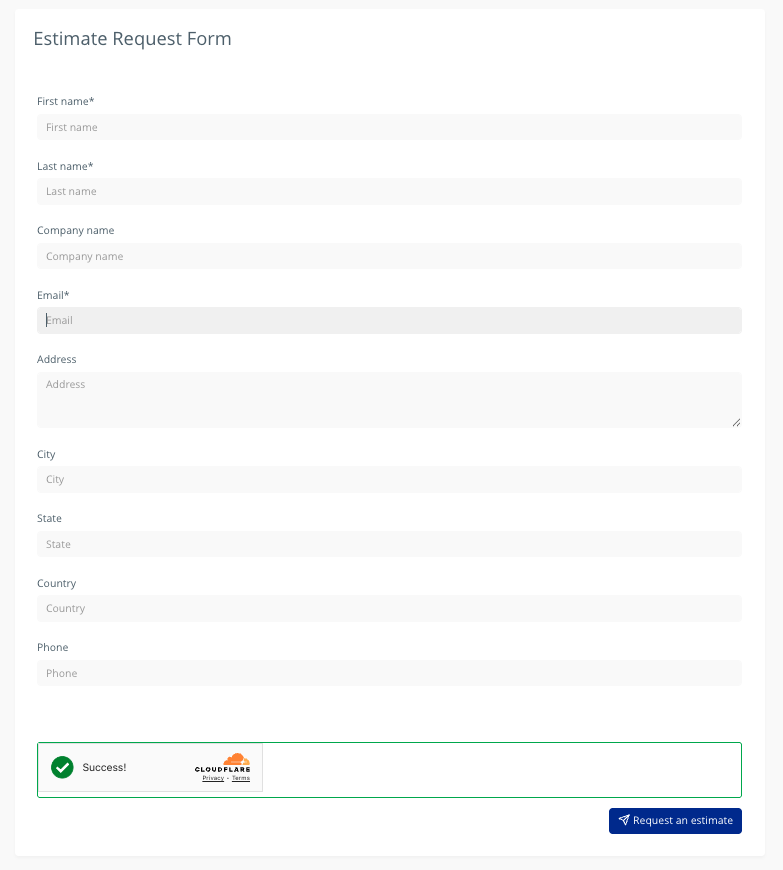
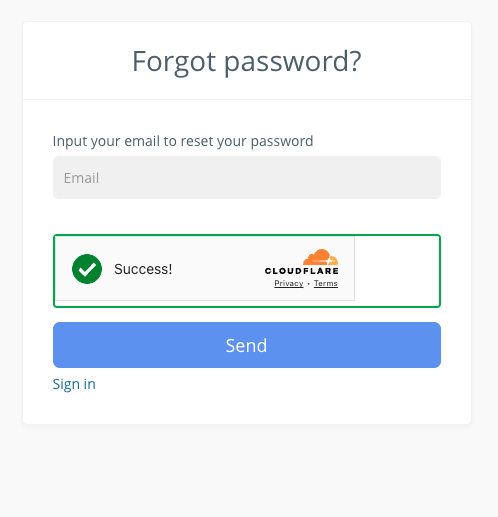
  • Configure different security levels for each form (Sign In, Sign Up, Password Reset, Support Tickets, etc.)
  • Four protection levels: Disabled, Guard (invisible), Fortress (visible auto-refresh), Vault (visible manual)

🛡️ Enhanced Bot Protection (3 New Layers)

  • Honeypot Fields — Invisible trap fields that catch bots auto-filling forms
  • Time-Based Validation — Rejects instant submissions (configurable 3-second minimum)
  • IP Rate Limiting — Limits submissions to 5 per hour per IP address

✨ UI & Performance Improvements

  • Redesigned settings page with clean, minimalist interface
  • Custom-styled dropdowns with Select2 integration
  • All bot protection checks complete in under 15ms
  • Comprehensive logging for all security events

🐛 Bug Fixes

  • Fixed settings not saving on first attempt
  • Fixed "disabled" protection level still showing widget
  • Removed visual indicators for true invisible CAPTCHA experience
v1.0.0 September 2025
Initial Release
  • Cloudflare Turnstile integration for RISE CRM
  • Invisible CAPTCHA verification (no user interaction)
  • Drop-in replacement for Google reCAPTCHA
  • Site Key + Secret Key configuration
  • Theme and size customization options
  • Test connection feature with status dashboard
  • CSP-friendly and cross-browser compatible
  • Secure credential handling
  • Zero core file modifications required

Ready to Upgrade Your UX and Security?

Join teams who've switched to invisible, privacy‑first bot protection. Setup takes minutes, not hours.

Risk‑free: If you hit a blocker, our support team will guide you through installation and validation during business hours (Mon–Fri, 9–5 EST).